


KMPlayer - All Video Player
4.16.33K Reviews
App Specs
- Version
- 36.04.235
- Updated On
- License
- Free
- Downloads
- 10,000,000+
- Developer
- PANDORA.TV
- Categories
- Video Players & Editors
- Platform
- Android, iOS
Screenshots
 Analysis by AppCompare
I tend to judge a video player by what happens when a file is awkward, not by how it handles a familiar clip. A movie that refuses to open in a basic player, a subtitle track that needs nudging, or a large file I want to watch without filling my device can turn a simple evening into troubleshooting. KMPlayer - All Video Player aims to make those situations less frustrating by handling a broad range of video files and offering controls beyond play and pause. My overall impression is that it suits people who want flexibility, though its many options are more useful to some viewers than others.
What to expect when you press play
KMPlayer is a free video player from PANDORA.TV, in the Video Players & Editors category. It has a 4.1 average from around 387,000 ratings and more than 10 million installs, so it is an established choice rather than an obscure utility. It is rated for Everyone, and its current version is 36.04.235. That broad reach is reassuring, but popularity alone cannot promise that every file will play perfectly on every device.
For everyday viewing, the appeal is straightforward: instead of converting a video just because your usual player struggles with its format, you can try opening it directly here. The app is promoted around support for varied files, including MPG, MKV and HEVC, as well as high-resolution playback. In practice, playback speed depends on more than the player: the file’s encoding, the device’s hardware and available storage all matter. I would treat support for demanding formats as a reason to try the app, not a guarantee that every large or unusual file will run smoothly.
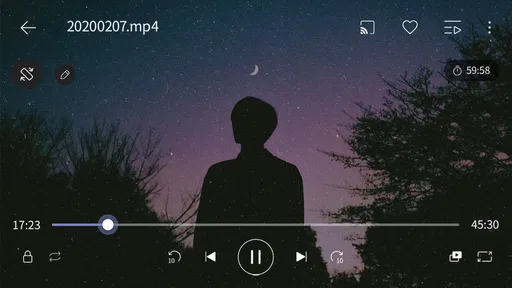
The most useful speed adjustment is not a flashy extra; it changes how I use the player. For a lecture or recorded talk, increasing playback speed can save time, while slowing a short section makes it easier to catch a quick instruction or line of dialogue. I would use this deliberately rather than set one pace for everything: speech can become difficult to follow when rushed, and a film often loses its natural rhythm when sped up. The control is best viewed as a practical tool for specific material.
Useful controls for real viewing habits
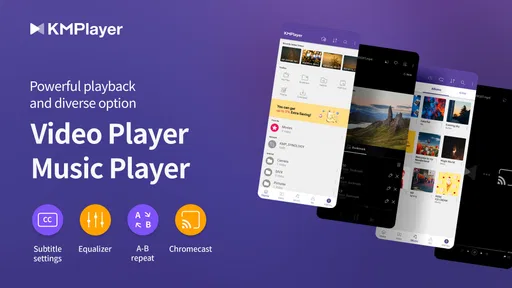
Subtitle timing is another feature that can solve a specific annoyance. If captions appear a little ahead of speech or trail behind it, adjusting their timing can make a file watchable without searching for another copy. That is especially handy with an international film or a downloaded episode whose caption track is close, but not quite right. I would first check that the correct subtitle track is selected, then change timing in small steps; a large adjustment can fix one scene while making another feel off.
Picture and sound controls give the app more room to adapt than a minimalist player. Brightness, contrast and saturation adjustments can help when a video looks washed out or too dark on a particular screen, while audio balance and amplification can help with a recording whose dialogue is quiet. An equalizer may also be useful for music videos or concerts. These controls are not a substitute for a good source file or headphones, and pushing amplification too far can make sound harsh, but they are valuable when the original mix is uneven.
The practical trade-off is that extra controls can make a player feel busier than the simplest option. If all I want is to tap a video and watch it, I would rather not spend time tuning picture or sound. If I am settling in for a long film, though, a few minutes spent correcting subtitles or lowering an overly bright image can make a noticeable difference. I see the customization as useful when a file needs help, not as something that every viewer has to touch.
Worth Reading Before You Choose

EA SPORTS FC Mobile 26 Is a Bigger Football Game, but It Takes Time

Flipboard Shows What News Apps Must Do Beyond the Feed

Switching to Android Auto Means Rethinking Your Driving Routine

Google Calendar Makes a Crowded Week Easier to Manage

Ludo King Makes the Most of the Minutes Between Plans

Baby Panda World Brings Quick Play to Modern Phones, but Its Game Library Feels Busy
Large files, multitasking and storage choices
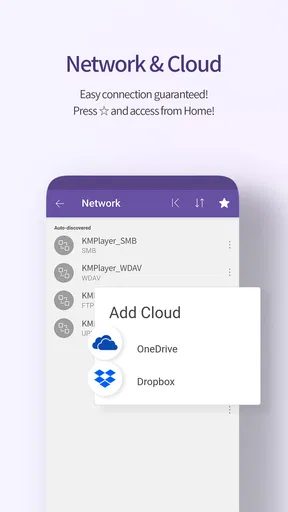
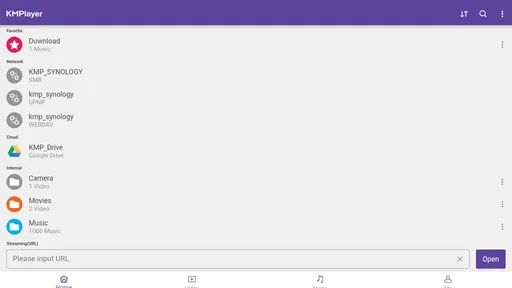
Cloud playback through Google Drive or Dropbox is a different kind of convenience: it can let you watch a video without first keeping a separate local copy on your device. That may suit someone who moves between a phone and a stored collection, or who wants to avoid using local space for a file they will watch once. Before relying on it for a trip, I would test the particular file and connection while still at home. Streaming a large video is not the same as having an offline copy, and a weak connection can make cloud access less dependable than local playback.
The floating screen option is most useful for short, low-attention viewing: keeping a tutorial visible while checking another app, for example, or glancing at a talk while replying to a message. It is less suited to a film where the image deserves your full attention. I would also consider the device’s screen size; a small floating window can be handy for reference, but it is not a satisfying replacement for full-screen viewing.
A realistic routine might be downloading a lecture or keeping a work video in cloud storage, opening it in the evening, correcting the subtitle offset if necessary, and speeding through a familiar section. If the device is nearly full, cloud playback may be the better first try; if the connection is unreliable, a local copy is the safer choice. That small decision matters more than chasing maximum resolution: a large, high-quality file can use more storage and demand more from a device without improving a quick background watch.
How it compares with simpler players
The usual built-in player is often enough for clips recorded on the phone and common files that open without fuss. Its advantage is simplicity: fewer controls to learn and no reason to install a separate app if playback already works. KMPlayer makes more sense when those defaults become limiting, such as when a video uses a less convenient format, needs subtitle timing changes, or benefits from playback speed and picture or audio adjustments.
Compared with a basic player, the breadth of controls is its strongest argument, but it also asks for more attention. A viewer who only watches occasional short clips may never use most of the adjustments. Someone with a mixed library of films, lessons, music videos and downloaded files is more likely to appreciate having those tools together. I would not choose a feature-rich player simply because it has more settings; I would choose it because I have encountered a specific playback problem that those settings can address.
The First Impression
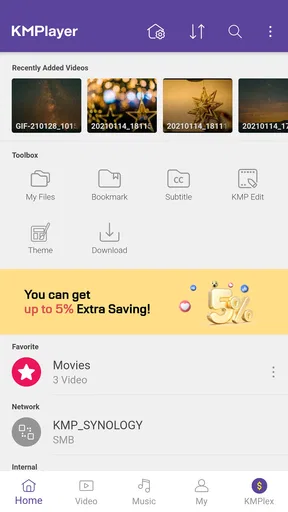
Right off the bat, KMPlayer is super easy to download and install, whether you’re an Android or iOS user. Once you fire it up, you’re greeted with a clean, intuitive interface. It’s pretty straightforward, with everything you need right at your fingertips. No fuss, no clutter, just a sleek design that’s easy on the eyes. You can tell the developers didn't skimp on making the navigation as user-friendly as possible.
Performance and Features Galore
Now, let’s dive into what truly matters—the performance. KMPlayer doesn’t disappoint. It supports an impressive variety of video formats, from the usual MP4, AVI, to the more complex MKV, FLV, and more. This means you can pretty much throw any video file at it, and it’ll play it smoothly.
One of the standout features is the ability to adjust playback speed. Whether you’re trying to catch every detail in a slow-mo or speeding through a lecture, this feature is surprisingly handy. Plus, the app supports HD video playback, so you're guaranteed a crisp, clear viewing experience.
If you’re someone who loves subtitles, you’re in luck. The app supports a range of subtitle formats and even lets you adjust the timing. So, whether you’re watching an international film or need subtitles for clarity, KMPlayer has got you covered.
Customization and More
Another highlight is the customization options. You can tweak the brightness, contrast, and even the saturation of your video. The night mode feature is a blessing for those late-night binge sessions, reducing eye strain and enhancing comfort.
For audiophiles, the app lets you adjust the audio balance and amplify the sound, which is great if you’re watching something with a soft audio track. The equalizer settings let you fine-tune the audio to your liking, making it a solid choice for music videos or concerts.
Additional Perks
Besides being a stellar video player, KMPlayer offers cloud storage integration. This feature allows you to play videos directly from your Google Drive or Dropbox. It’s super convenient if you don’t want to hog up space on your device.
Also, if you’re one of those folks who likes to watch videos on the go, the floating screen feature is a nifty addition. You can watch your video in a small window while multitasking on your device. It’s perfect for keeping yourself entertained while you work or chat.
Choosing it for your device and routine
Device limits are worth keeping in mind before making KMPlayer your default. The minimum OS requirement is 7.0, so I would check compatibility before expecting an older device to run it. Even on a supported device, a high-resolution or HEVC file can be more demanding than a short standard clip. If playback stutters, I would try a smaller or less demanding file first, close other intensive tasks, and compare local playback with cloud playback. That helps separate a file or connection issue from a general problem with the app.
Stability is also a matter of the particular file and viewing setup. A format being supported does not mean every encoding, damaged file or subtitle combination will behave identically. My practical advice is to test a new file before relying on it for a long trip or presentation. If one video fails, trying another file is a useful check; if ordinary files also cause trouble, the built-in player may be the more dependable choice for that device. I would avoid assuming that a single failure means the whole library is incompatible.
There is a free version to try, while in-app purchases range from $1.99 to $19.99 per item. I would start with the free app and see whether its format handling and controls solve an actual need before considering a purchase. The app is aimed at a broad audience, with an Everyone rating, but that does not mean every feature will matter to every viewer. Casual users can keep things simple; people who routinely adjust subtitles, speed or sound have a clearer reason to explore the extra controls.
Who should skip it? If your phone’s built-in player already opens all your videos, you rarely use subtitles and you never change playback speed, adding another player may not improve your routine. The same goes for anyone who wants a minimal interface and has no interest in tuning image or audio. On the other hand, people who collect files in several formats, watch educational content, or need to correct a subtitle mismatch are more likely to get practical value from it.
The Final Verdict
After spending a good amount of time with KMPlayer - All Video Player, I must say, it’s a robust app that lives up to its claims. It’s versatile, user-friendly, and packed with features that cater to both casual viewers and video enthusiasts.
If you’re on the hunt for a reliable and feature-rich video player, I’d recommend giving KMPlayer a try. It’s got the potential to become your go-to app for all your video needs. Whether you’re catching up on a series, watching educational content, or just enjoying some music videos, this app has got your back.
So, what are you waiting for? Dive into the world of effortless video playback and let KMPlayer transform your viewing experience.
My performance verdict
For me, the strongest case for KMPlayer is not that it can promise flawless playback in every situation; no player can remove limits imposed by a file, connection or device. It is that it gives you several sensible ways to work around common friction: try a different format directly, correct subtitle timing, adjust speed, or tune the picture and sound. Those options make it a worthwhile trial for viewers whose default app has let them down.
I would keep expectations measured on older or heavily loaded devices and on demanding files, and I would not rely on cloud playback when offline access is essential. If you value a simple player above all, the default option may remain the better fit. If you want one flexible app to test varied videos and make practical adjustments, the free version is an easy place to start, with purchases optional rather than a reason to install it. For that audience, it earns a place among the more capable choices in video playback.
Pros
- Supports a wide range of video formats.
- Offers high-quality playback options.
- User-friendly interface with easy navigation.
- Customizable playback settings.
- Free to use with no hidden charges.
Cons
- Contains ads that can be intrusive.
- May experience occasional playback lag.
- Limited advanced features in free version.
- Requires permissions that may concern privacy.
- Updates can be inconsistent.
FAQs for KMPlayer - All Video Player
What video formats does KMPlayer support?
KMPlayer is known for its extensive support of various video formats, including MP4, AVI, MKV, MOV, FLV, and more. It also supports high-definition videos, such as 4K and UHD, ensuring you can play almost any video file without compatibility issues. This versatility makes it a go-to choice for many users.
Does KMPlayer offer subtitle support?
Yes, KMPlayer offers robust subtitle support, allowing users to load external subtitle files in various formats such as SRT, SSA, and ASS. The app also supports embedded subtitles in videos, and users can customize subtitle fonts, sizes, and colors to enhance their viewing experience according to preference.
Is KMPlayer free to use, and are there any in-app purchases?
KMPlayer is free to download and use. However, it includes optional in-app purchases for those looking to enhance their experience further. These purchases can remove ads and unlock additional features, such as advanced video tools and customization options. Despite this, the free version remains fully functional for most users.
How does KMPlayer handle media library organization?
KMPlayer offers efficient media library management tools. It automatically scans your device for media files and organizes them into a user-friendly interface. Users can create playlists, sort files by different criteria, and easily access their favorite content. This organization helps in managing large collections effortlessly.
Are there any customization options available in KMPlayer?
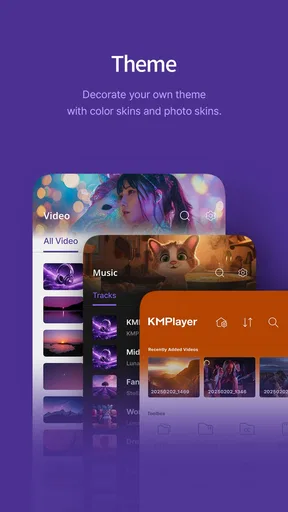
KMPlayer provides a range of customization options. Users can adjust the playback speed, apply video and audio filters, and modify the interface theme. These features allow users to tailor their viewing experience to their preferences, ensuring the app meets both aesthetic and functional needs for all types of users.


